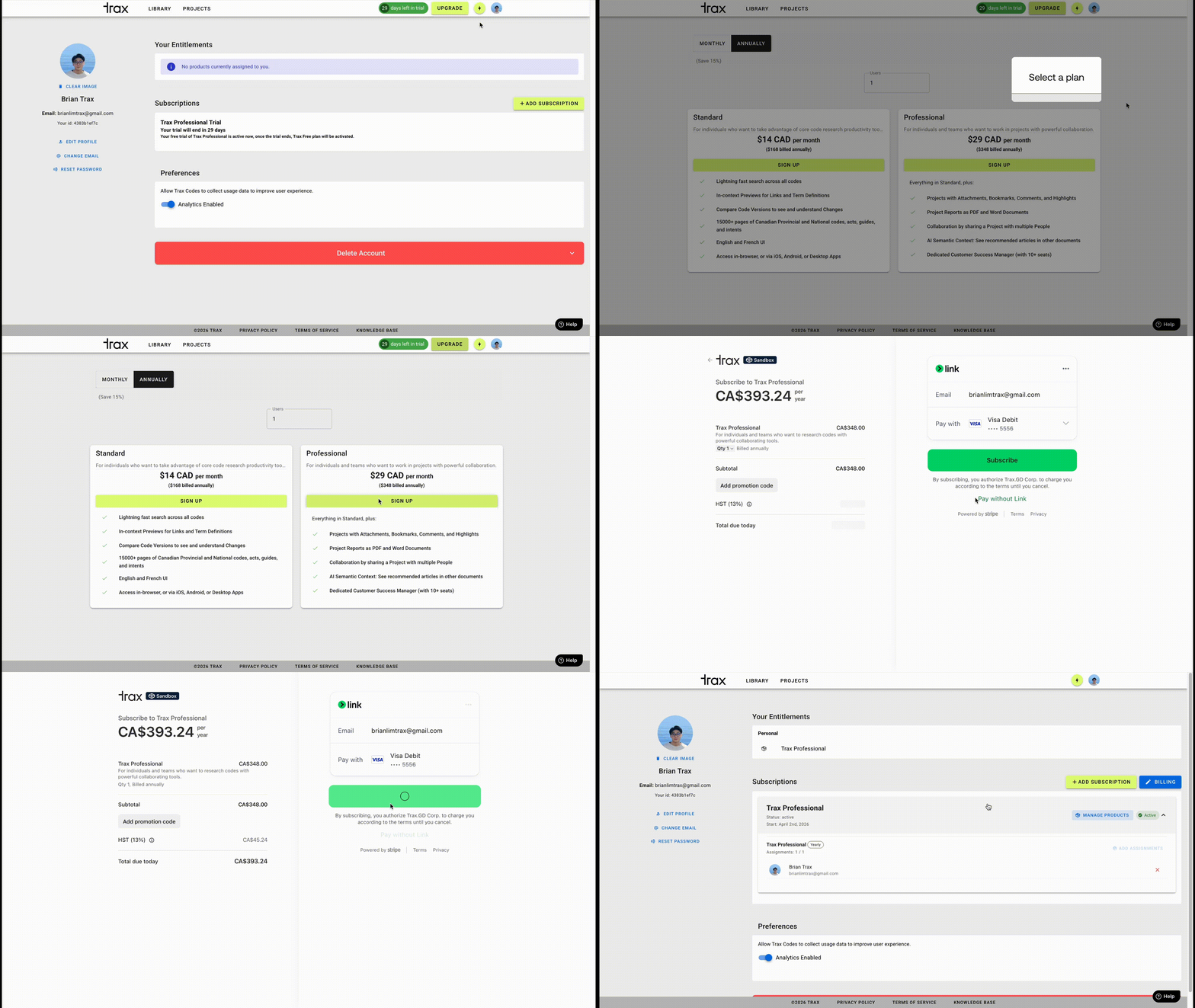
To purchase a subscription, you can choose either of the following
- Click on the ‘Upgrade’ button on the navigation bar
- Go to Profile > Add Subscription
On the Pricing page:
- Choose billing cycle, plan, and seat count.
- Select Sign Up.
- Complete Stripe checkout.
- Return to Profile.
What to expect:
- This uses Stripe checkout.
- If you cancel checkout, nothing changes.
Single subscription vs. multiple subscriptions:
- A single subscription with multiple products means you keep adding products to one existing subscription.
- In that setup, those products appear together in one subscription panel on Profile.
- Multiple subscriptions means you create a separate subscription, which appears as another subscription panel on Profile.
- Use a single subscription when you want related products managed together under one subscription record, for example with the same billing details and a consolidated invoice.
- Use multiple subscriptions when you want to keep products separated into different subscription records.
Was this article helpful?
That’s Great!
Thank you for your feedback
Sorry! We couldn't be helpful
Thank you for your feedback
Feedback sent
We appreciate your effort and will try to fix the article